For Windows EC2 instances on AWS depending on your licensing arrangements you can either purchase from AWS or bring your own license (BYOL). This post will consider how license included appears to the Windows admin.
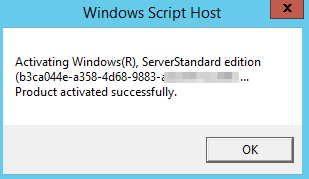
To activate the Windows server use
slmgr.vbs /atowhich should return:
To see the licensing status, run the following command from a DOS prompt:
slmgr.vbs /dliWindows Script Host will pop-up with something like the following:
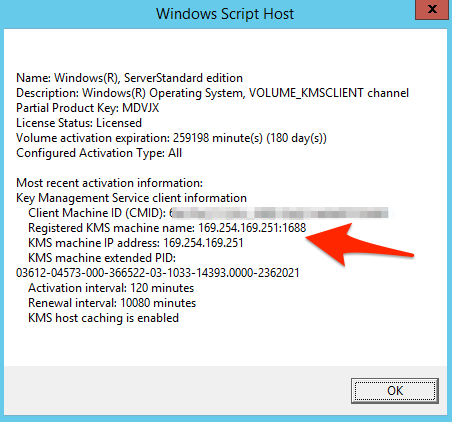
Here we can see the IP address of 169.254.169.251 is being used as the Windows Key Management Service address – this is managed by AWS, so the server is registered to the AWS Windows KMS. If any host-based firewalls etc are being used it’s important not to block this address (port 1688) otherwise KMS won’t be able to activate.
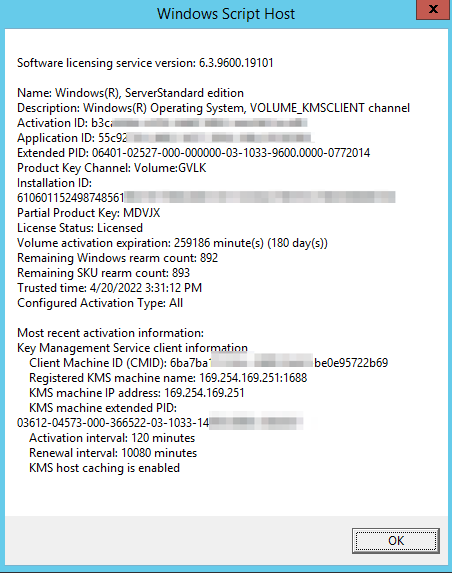
For further information the following command can be used:
slmgr.vbs /dlvwhich returns the following information:
Troubleshooting activations
What happens if there’s a problem with activation?
slmgr.vbs /ato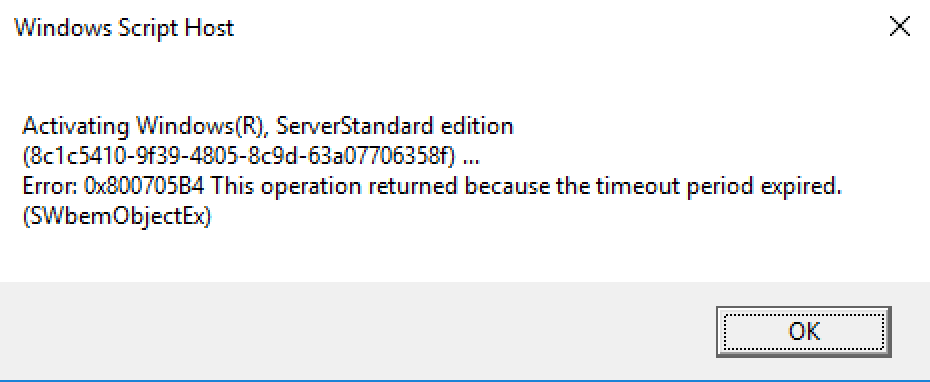
First, check the registry
HKEY_LOCAL_MACHINE\SOFTWARE\Microsoft\Windows NT\CurrentVersion\SoftwareProtectionPlatform
there are two keys that should be set, KeyManagementServiceName and KeyManagementServicePort
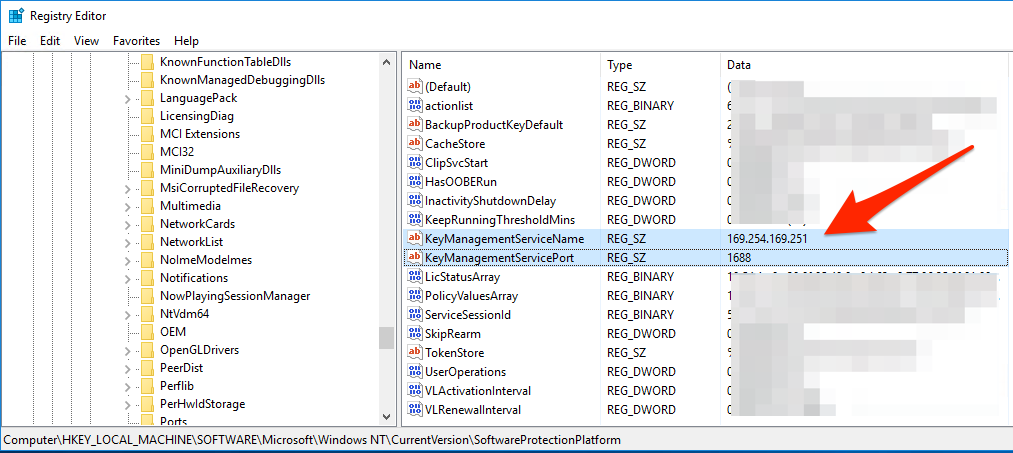
Check that these are set as above, to 169.254.169.251 and port 1688.
Also check any host level firewalls are not blocking that traffic, and then run slmgr.vbs /ato again.
AWS also has a guide to troubleshooting here and there is a Microsoft guide to the slmgr.vbs options here.